Tutorial · Step 5 of 6
Tools & Rendering
Beyond the timeline editor, Parapheonix includes a set of standalone tools for common one-shot video and audio tasks. When your edit is ready, the Render panel exports everything to a finished file.
Standalone tools
The tools page at /tools/ lists all available tools. You can also access them from inside the editor via the Tools button in the bottom-left of the media panel.
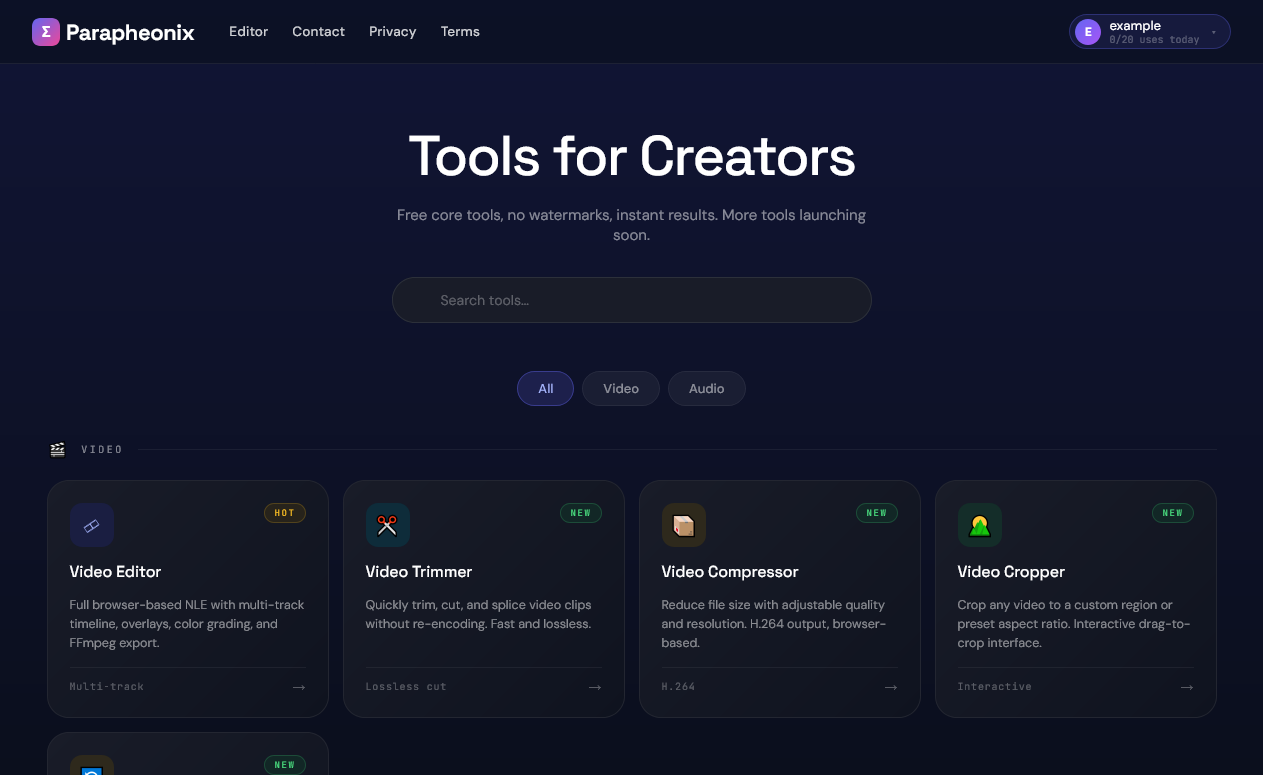
The tools directory — video and audio tools, searchable and filterable by category
✂
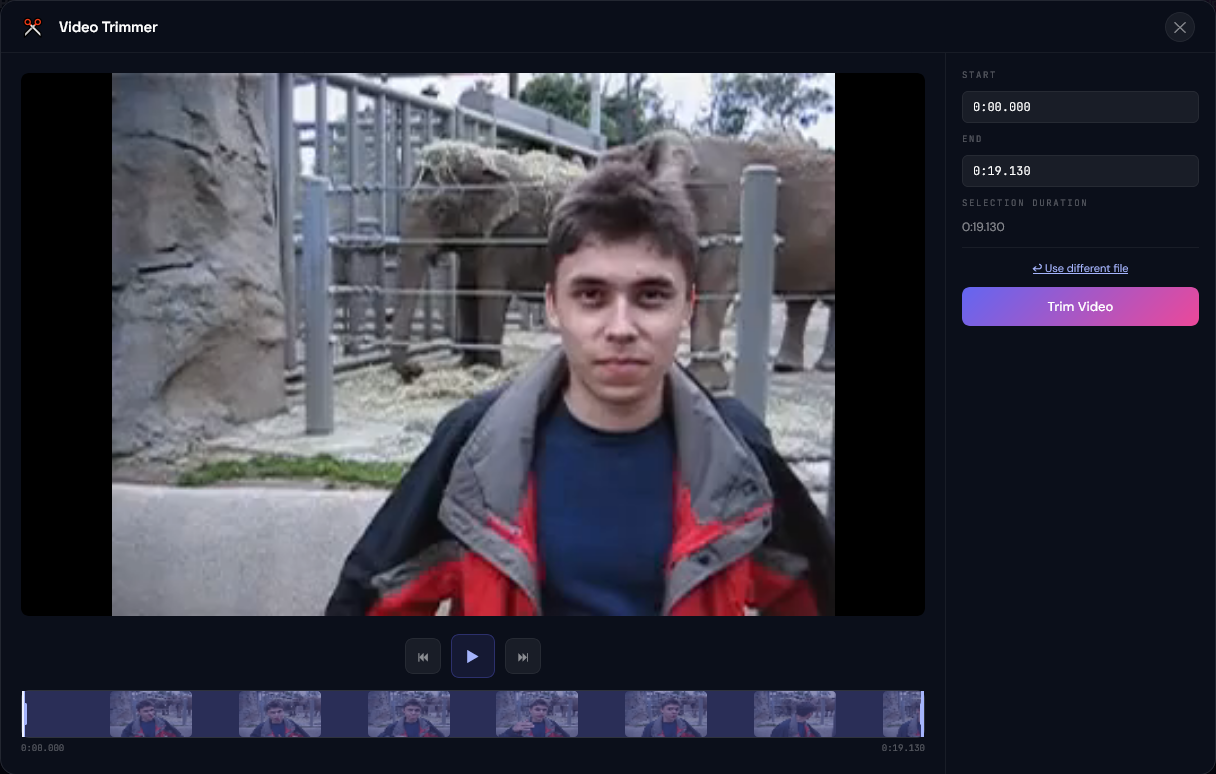
Video Trimmer
Cut a video to a specific start and end time. Uses lossless cutting where possible — no re-encoding, so output is instant at full quality.
📦
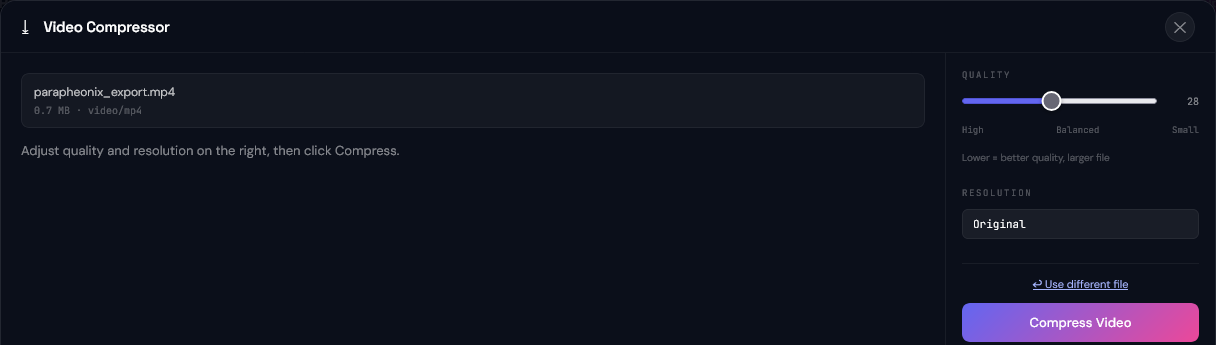
Video Compressor
Reduce file size with adjustable quality and resolution settings. Outputs H.264 MP4. Useful before sharing or uploading to platforms with size limits.
🌄
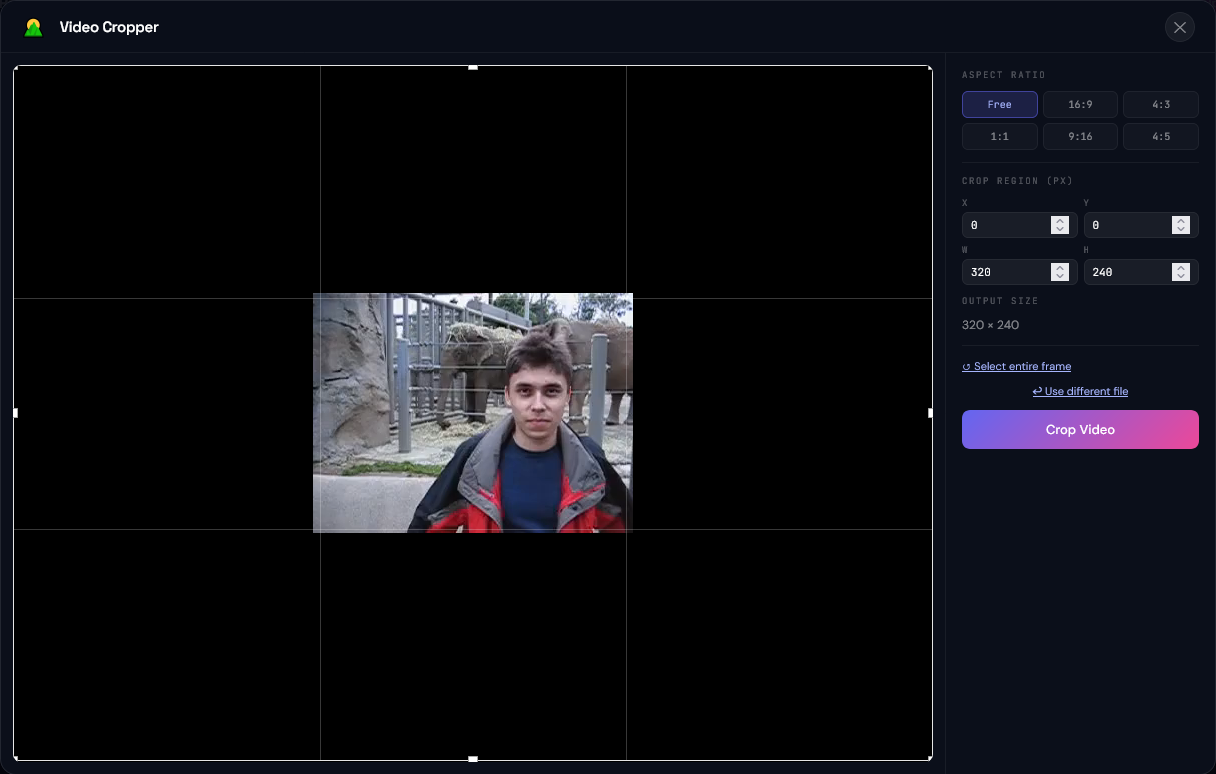
Video Cropper
Crop a video to a custom region using a drag-to-select interface, or choose a preset aspect ratio like 16:9, 1:1, or 9:16.
⇄
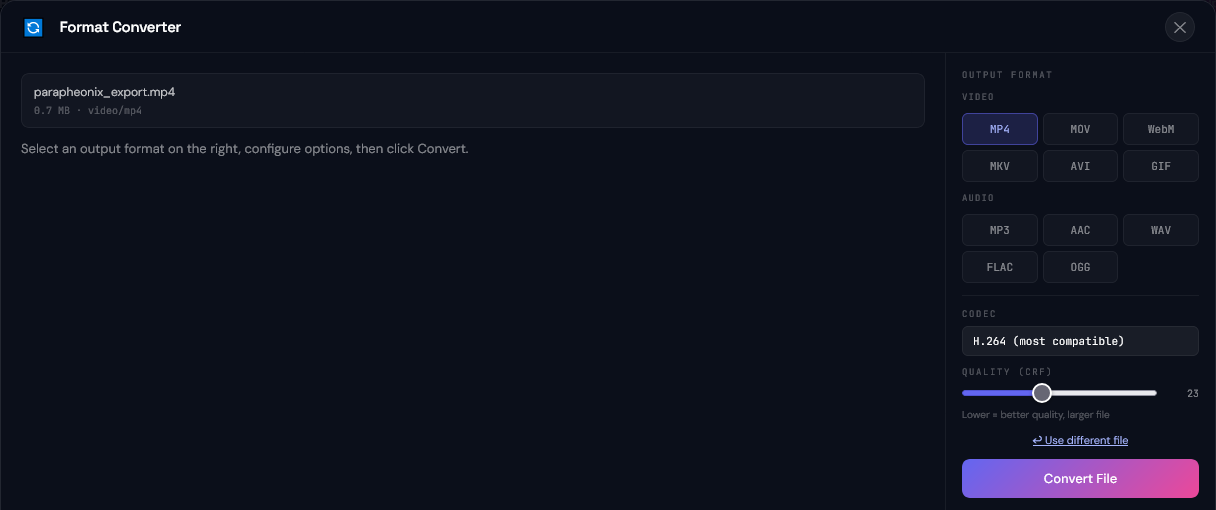
Format Converter
Convert between MP4, MOV, WebM, MKV, AVI, and more with configurable codec settings. Supports over 20 formats.
🎤
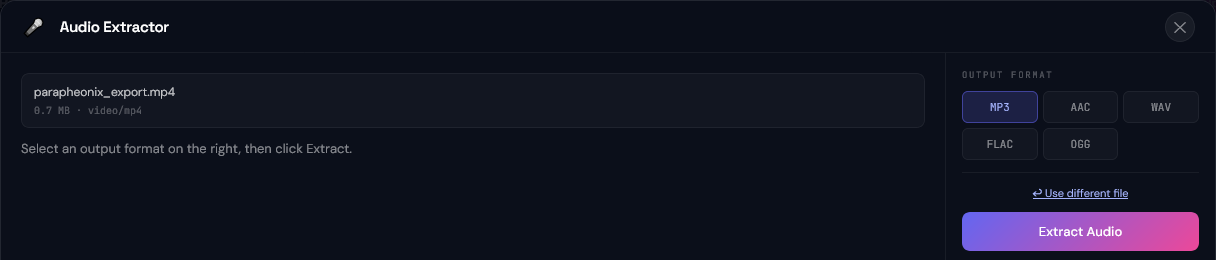
Audio Extractor
Pull the audio track from any video file and export it as MP3, WAV, AAC, FLAC, or OGG — without re-encoding the video stream.
📢
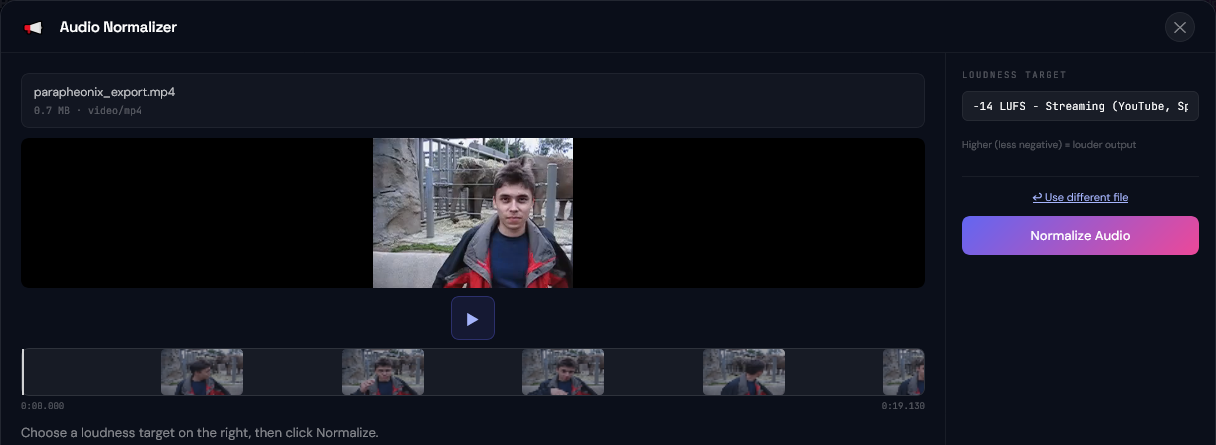
Audio Normalizer
Normalize audio loudness to streaming, broadcast, or podcast standards (LUFS). Uses EBU R128 measurement for accurate levelling.
Rendering your timeline edit
When your timeline edit is complete, click ▶ Render in the top-right of the editor. This opens the render panel where you configure your export.
1
Choose output format and quality
Select the container (MP4, MOV, WebM), codec, and quality preset. Higher quality means a larger file. MP4 H.264 is recommended for most uses.
2
Upload your media files
The render panel asks you to re-upload any media files used in the timeline (since browser blobs can't be transferred to the server). This is a one-time upload per render.
3
Wait for the render to complete
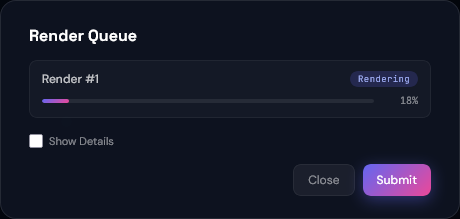
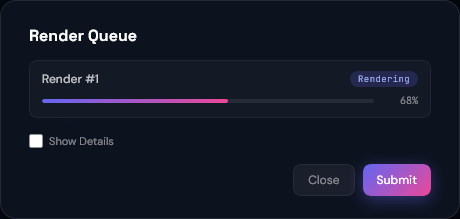
Server-side FFmpeg processes your timeline. A progress indicator shows the current status. Most renders finish in seconds.
4
Download your file
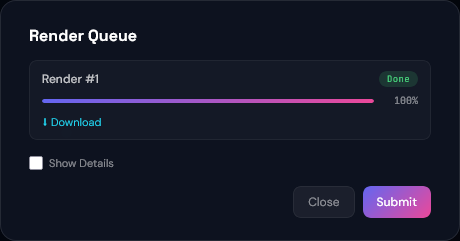
When the render finishes, a download button appears. The output file is automatically deleted from our servers after 1 hour.
🚫
No watermarks, ever. Every export — whether from the standalone tools or the full timeline render — is watermark-free regardless of whether you are signed in.
Choosing the right output settings
The render panel gives you control over format, codec, and quality. Here is a quick guide to picking the right settings for your use case.
📱
Social media and general sharing
Use MP4 with H.264 at CRF 18–23. This produces a small, widely compatible file that plays everywhere — YouTube, Instagram, Discord, and most messaging apps. CRF 18 is near-lossless; CRF 28 is good enough for web delivery.
🎞
High-quality archiving or further editing
Use MOV with H.264 at CRF 15 or lower. A lower CRF value means better quality at a larger file size. MOV is preferred over MP4 for intermediate files when you plan to re-edit the output later.
🌐
Web embedding
Use WebM with VP9 for the smallest file size with good visual quality. WebM is natively supported in all modern browsers and is the preferred format for HTML5 video elements. Encoding is slower than H.264.
Understanding the render queue
Timeline renders are processed by a server-side queue. If multiple renders are submitted at the same time — by you or other users — they are processed in order. A position indicator in the render panel shows your place in the queue and updates in real time.
Standalone tools (trim, convert, crop, compress, extract, normalize) are not queued — they run immediately and return a download link as soon as the operation finishes. For quick one-shot tasks, standalone tools are faster than the full render pipeline.
⏱
Render time depends on your timeline length and complexity. A 30-second edit with a single video track typically finishes in 5–15 seconds. Projects with multiple overlay tracks, text animations, and audio normalisation will take proportionally longer. Most renders complete in under a minute.