Tutorial · Step 2 of 6
Signing In
Once you have an account, signing in gives you access to your saved projects, a higher export limit, and a persistent session that lasts 30 days across devices.
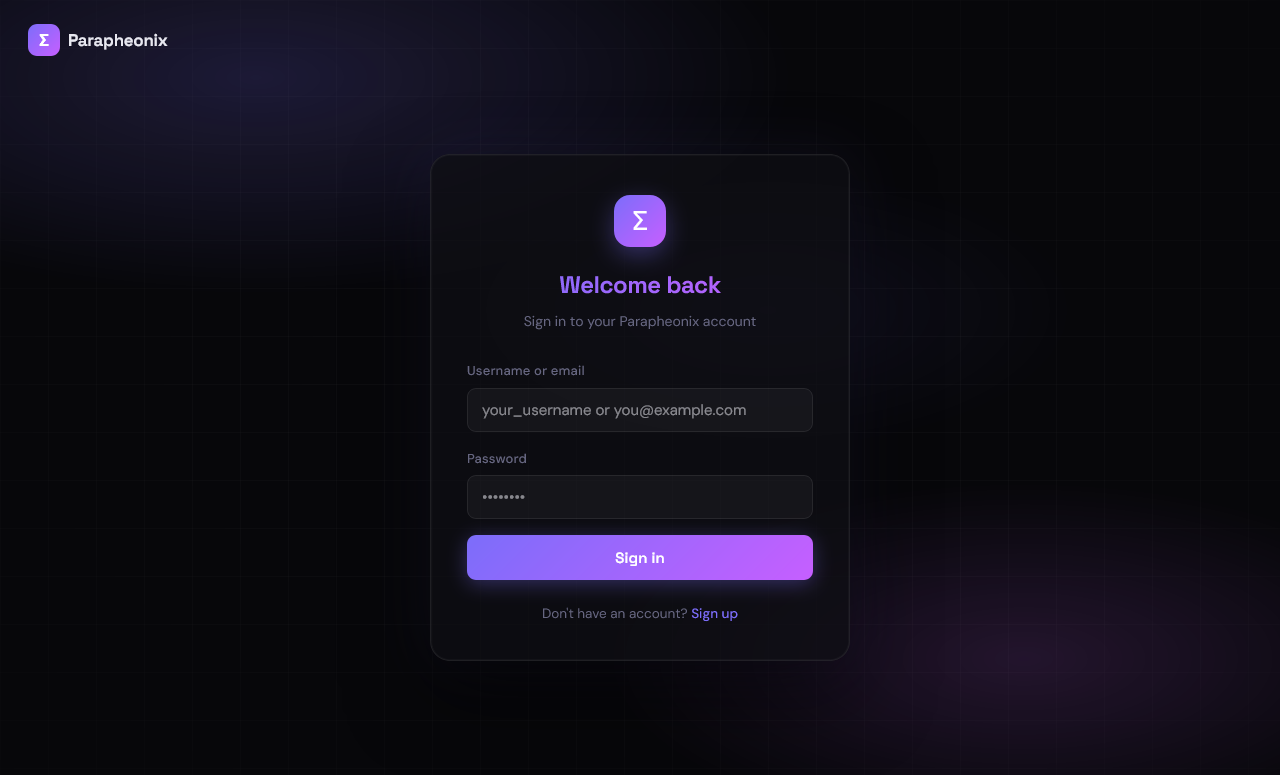
The sign-in page — enter your email address and password
How to sign in
1
Navigate to Sign In
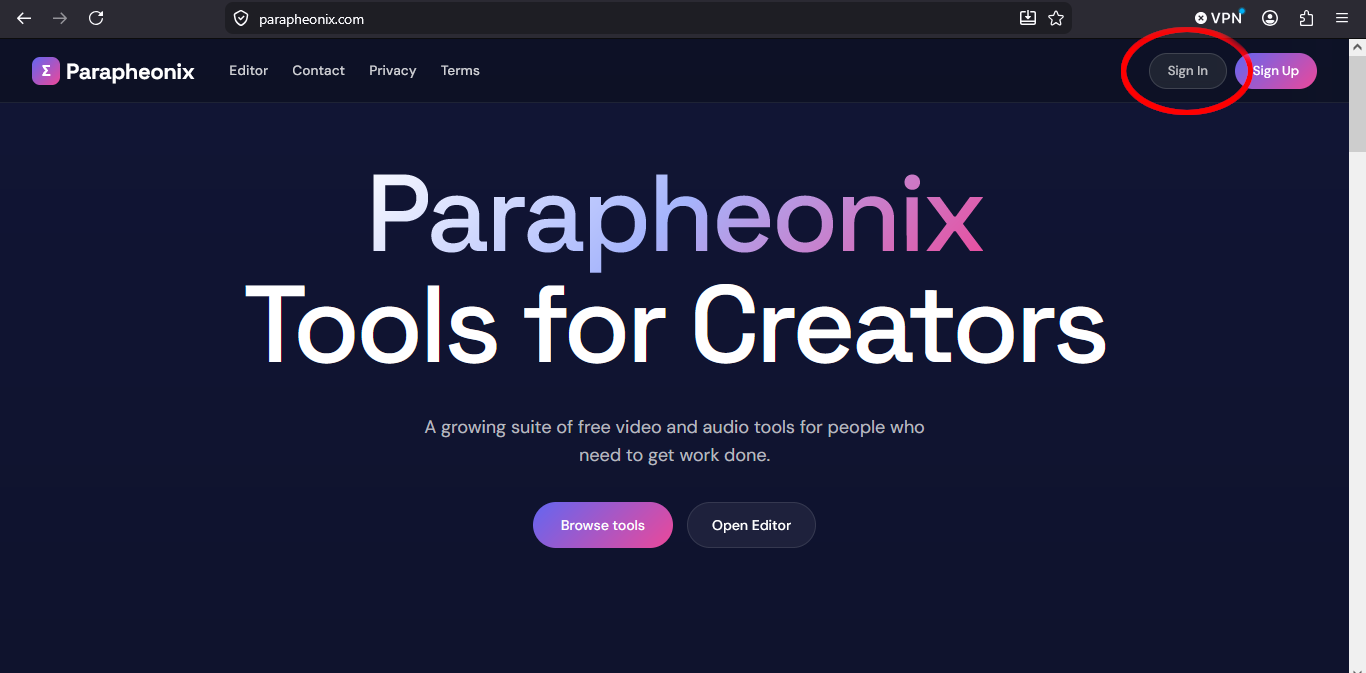
Click Sign In in the top-right corner of any page, or go to /login directly.
2
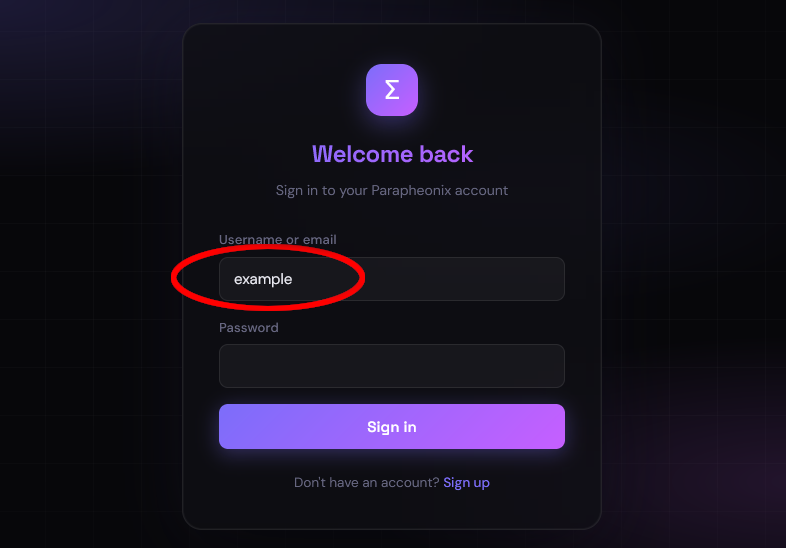
Enter your email address
Enter the email address you registered with. The field is case-insensitive.
3
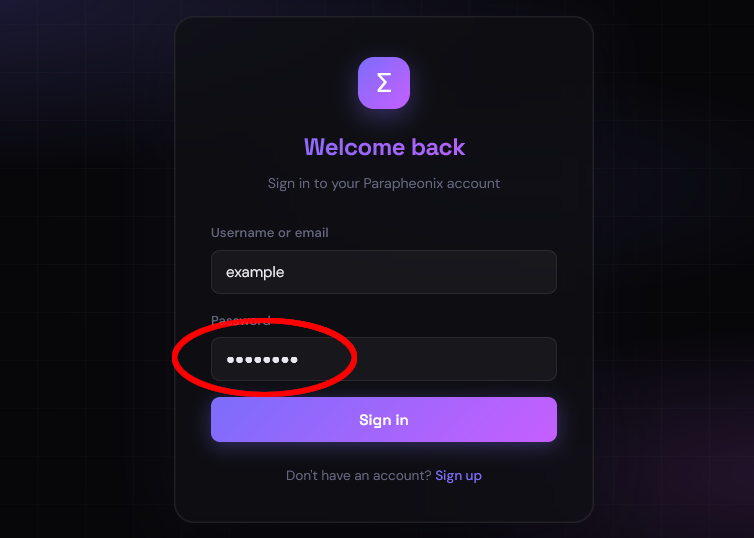
Enter your password and submit
Type your password and click Sign In, or press Enter. If the credentials are correct you will be redirected to the editor.
🔒
Your session lasts 30 days. You will stay signed in across page loads and browser restarts until the session expires or you manually sign out from the user menu in the editor.
The user chip in the editor
Once signed in, your username and daily usage counter appear in the top-right corner of the editor toolbar. Clicking the chip opens a dropdown with your usage details, a link to My Projects, and a Sign Out button.
📊
Daily export limit. Signed-in accounts get 10 exports per day (renders, trims, converts, crops, compresses, extracts, normalises). Guest users get 2. The limit resets every 24 hours.
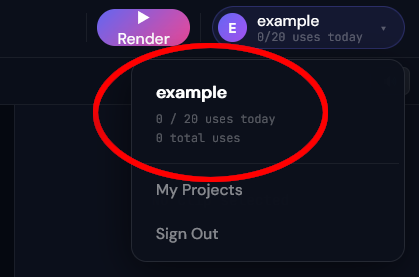
The usage counter in the editor topbar — resets every 24 hours
Signing out
To sign out, click your username chip in the editor's top-right corner and select Sign Out from the dropdown. Your session cookie is revoked server-side, so the sign-out is immediate across all tabs.
Signing in from multiple devices
Your account can be active on multiple devices at the same time. Each device gets its own session token, so signing out on one device does not affect sessions on others. Sessions expire automatically after 30 days of inactivity.
What to do if you cannot sign in
1
Check your email address
The email field is case-insensitive, but make sure you are using the address you registered with. If you registered with a Google or work alias, try that exact address.
2
Check your password
Passwords are case-sensitive. Make sure Caps Lock is off. There is currently no password reset feature — if you have permanently lost access, contact us at
[email protected] and we can manually remove the account so you can re-register with the same email.
3
Clear site cookies
If the sign-in page appears stuck in a loop, an old or corrupted session cookie may be the cause. Open your browser developer tools, go to Application → Cookies, and delete the APIToken cookie for parapheonix.com, then try again.
🔐
Keep your credentials private. Parapheonix staff will never ask for your password. If you receive a message asking for your login details, do not respond and report it to us at
[email protected].