Tutorial · Step 6 of 6
Projects & Gallery
Parapheonix saves your timeline edits as projects — both in your browser and to your account on our servers. The gallery lets you browse, open, and manage all of your saved work.
How saving works
Every project is saved in two places at once:
①
Browser storage (always)
Your current project is written to your browser's local storage on every save. This means if you close and reopen the editor — even without being signed in — your work is restored automatically.
②
Your account (when signed in)
If you are signed in, saves also go to your account on our servers. This lets you access projects from any device via the gallery.
⏱️
Autosave every 2 minutes. The editor automatically saves your project in the background every 2 minutes whenever there are unsaved changes. The save status indicator in the topbar shows ● Unsaved, Saving…, and ✓ Saved.
Saving manually
Click 💾 Save in the editor topbar at any time to save immediately. You can also rename the project by clicking its name in the topbar — the new name is picked up on the next save.
Starting a new project
Click + New in the editor topbar to start a fresh project. If you have unsaved changes you will be asked to confirm before the current project is cleared. Starting a new project also clears the browser storage slot, so it will not auto-restore on next open.
The Project Gallery
Access all your saved projects at /gallery/, or via My Projects in the editor topbar or the user dropdown.
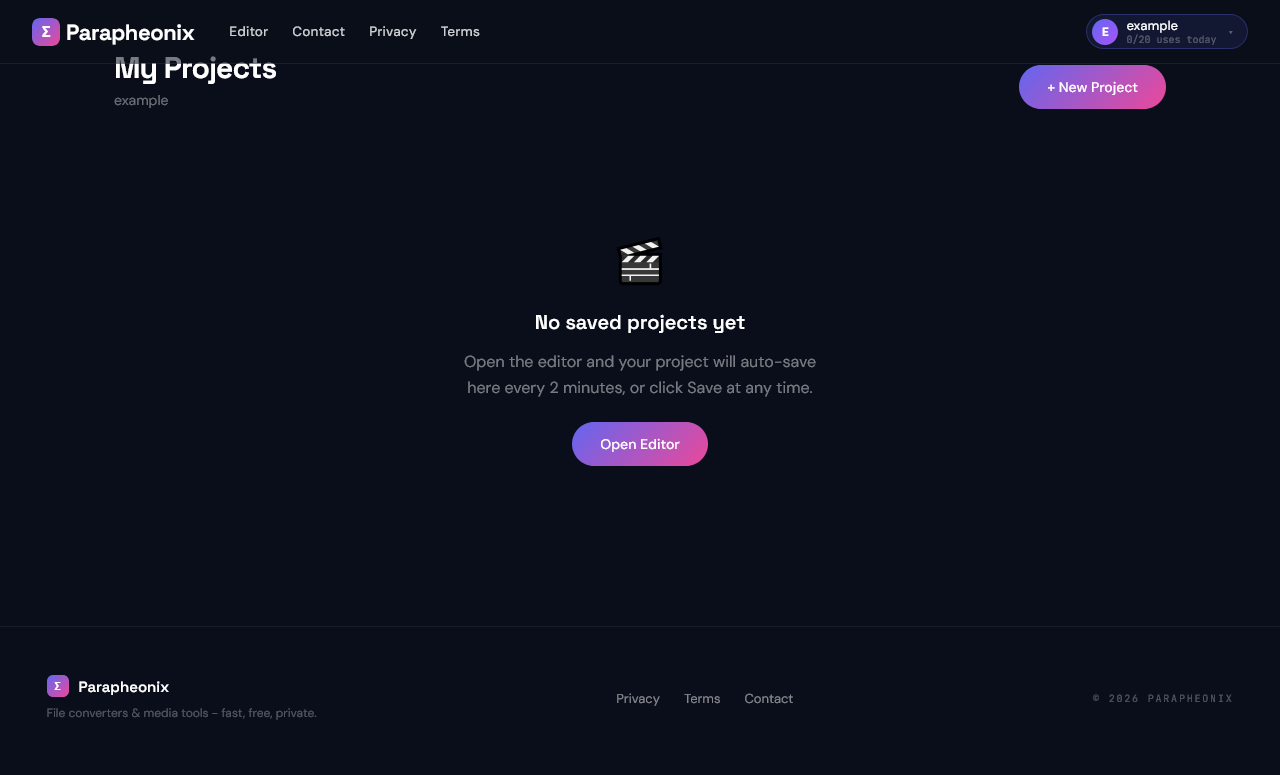
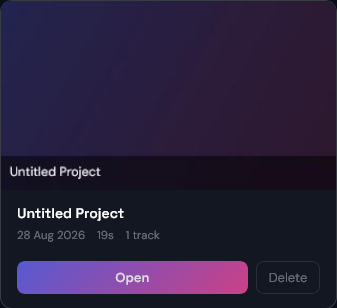
The gallery — all saved projects with thumbnails, last-saved date, duration, and track count
1
Opening a project
Click Open on any project card. The project is loaded from the server and stored in browser storage, then the editor opens with it ready to edit.
2
Deleting a project
Click Delete on a project card and confirm the prompt. Deletion is permanent and cannot be undone.
3
Creating a new project from the gallery
Click + New Project at the top of the gallery. This clears browser storage and opens a blank editor.
⚠️
Media files are not saved in the project. Projects save the timeline structure (clip positions, timing, effects, text) but not the media files themselves, since those are too large to store server-side. When you reopen a project you will need to re-import the original media files to see the video and audio in the preview and render.
You're all set
That covers everything you need to get started with Parapheonix. If you run into anything, the ? Help button in the editor launches the interactive tutorial, and the contact page is always open for questions.
Managing your media files alongside projects
Projects save the timeline structure — clip positions, durations, effects, text content, and track layout — but not the media files themselves. This keeps project sizes small and avoids storing large video files on our servers indefinitely.
When reopening a saved project, the editor will show placeholder clips where your media was. To restore the full preview and prepare for rendering, re-import the original files from your device. The editor matches re-imported files to the correct clips by filename, so keeping your source files named consistently makes this process quick.
Tips for staying organised
💡
Name your projects meaningfully
The default project name is "Untitled Project". Click the project name in the editor topbar to rename it before saving. Descriptive names like "Interview edit v2" or "Product demo Jan" make it much easier to find the right project in the gallery later.
💡
Keep source files in one folder
Store all media files for a project in a single folder on your device. When you need to reopen the project and re-import, you can drag the entire folder onto the media panel in one step rather than selecting files one by one.
💡
Save before switching projects
The browser storage slot holds one project at a time. Opening a different project from the gallery overwrites the browser slot. Always save your current work before switching, or enable autosave and wait for the "✓ Saved" indicator before navigating away.
💡
Delete old projects to stay organised
The gallery shows all projects tied to your account, including old tests and drafts. Deleting projects you no longer need keeps the gallery clean and makes it easier to find active work. Deletion is permanent — confirm only when you are sure you will not need the project again.
🔄
Projects sync across devices. Any project saved while signed in is immediately available in the gallery on all other signed-in devices. Open the gallery on a different computer, click Open, and the timeline loads exactly as you left it — just re-import the media files to restore the preview.